Controls
Starting off, it's worth mentioning that while many actions can be triggered via the mouse, most can be triggered via associated keyboard shortcuts as well.
At times there are even actions that can only be triggered via the latter.
To get an overview of all available shortcuts, open the 'Controls' window, either via "Help" drop down menu (that '?' button towards top right and then clicking "controls") or via pressing the shortcut '?'.
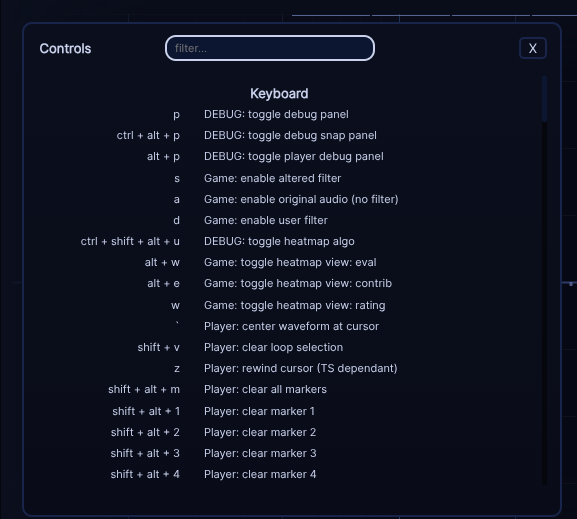
All action descriptions are prepended by their associated, rough context (e.g. "player", "playlist", ...). While you can just scroll through the list, it's faster to use the search feature when you roughly know what you are looking for.
The search is performed across both columns: shortcut and description. While you can just do a simple free text search, the search box actually offers a regex based search by default (ecmascript flavour). Here are some examples:
- search for anything related to "zoom": search string
"zoom" - searching for 'player' related shortcuts: search string
"player: " - shortcuts involving key 'd': search string
"\bd\b"('\b' is called a word boundary in regex; in this context it basically means "nothing before and after the letter"; just searching for letter 'd' by itself won't give good results)
While the remaining documentation will mention keyboard shortcuts at times, it's worth knowing where you can find all of them.
Once you are done, close this window either via its close button top right, or via escape key (note: this way of closing windows applies to most other windows as well).