GameArea
The central area of the UI: the GameArea.
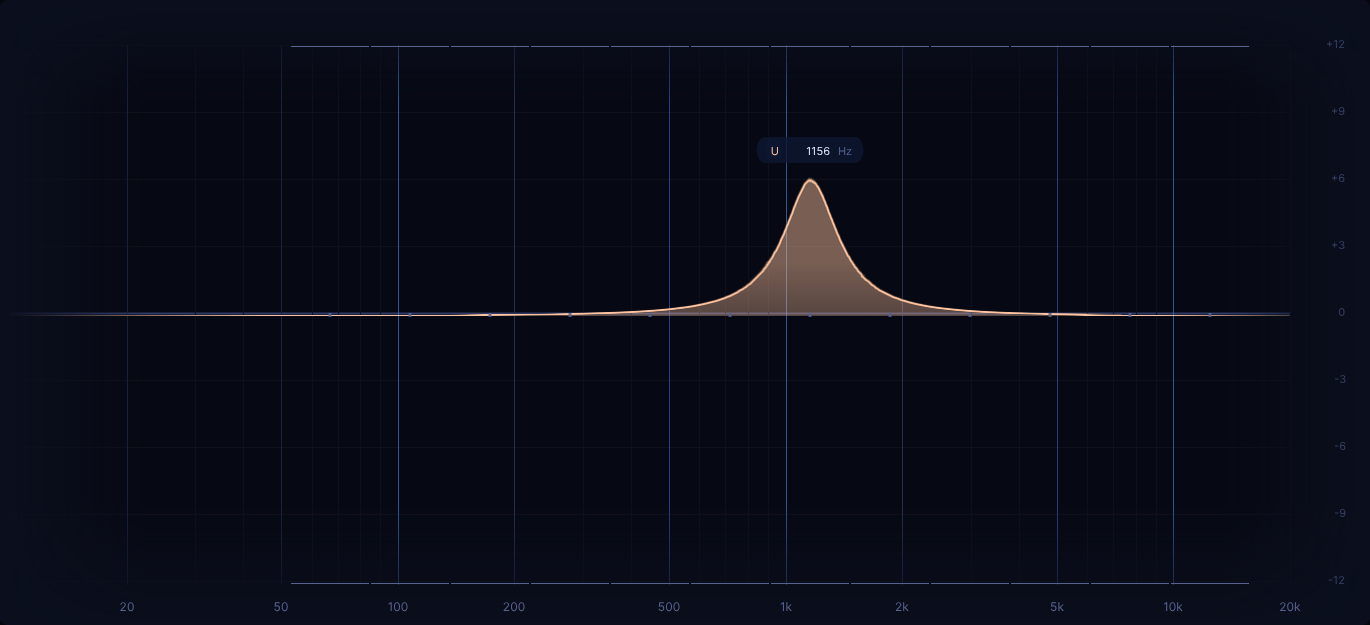
Indeed, it looks just like a typical graphical equalizer at a first glance!
Simply moving your mouse across that area will place a bell filter at certain locations.
These locations are called 'snap points' and will be discussed in a lot more detail later on.
In a sense, once you've configured the training to your needs, have loaded desired audio files, have set up the player the way you want, then your main focus will be on this area during a training session.
Out of all the UI areas, this one is also the most "feature packed", even though that will only become apparent later on.
For now, it's enough to just take note of what can be seen:
- an info box near the filter peak, containing a symbol and the current frequency value
- the frequency labels on the horizontal axis and gain labels on the vertical axis
- vertical frequency lines having slightly different emphasis to them to help determine the rough filter position at a glance:
- the alternating coloring is optional (default on) and can be toggled via Settings
- for the lower four difficulties, some dots on the horizontal center line, called 'snap dots' (note: not the same as 'snap points'; see above)
- which can also toggled via Settings
- not present on higher difficulties due to space constraints and a diminishing need for them
- the purpose is simply to give an additional visual indication when 'snap points' are spaced somewhat apart, to make "filter snapping" a bit more visually predictable from a horizontal perspective
- some additional lines towards bottom and top, called 'snap indicators':
- roughly speaking only these fully indicate which 'snap points' the filter can be placed on, as only here a differentiation between "cut" and "boost" is being displayed
Both 'snap dots' (if present) and 'snap indicators' indicate where the filter can be placed.