Training objective (single turn)
A single turn
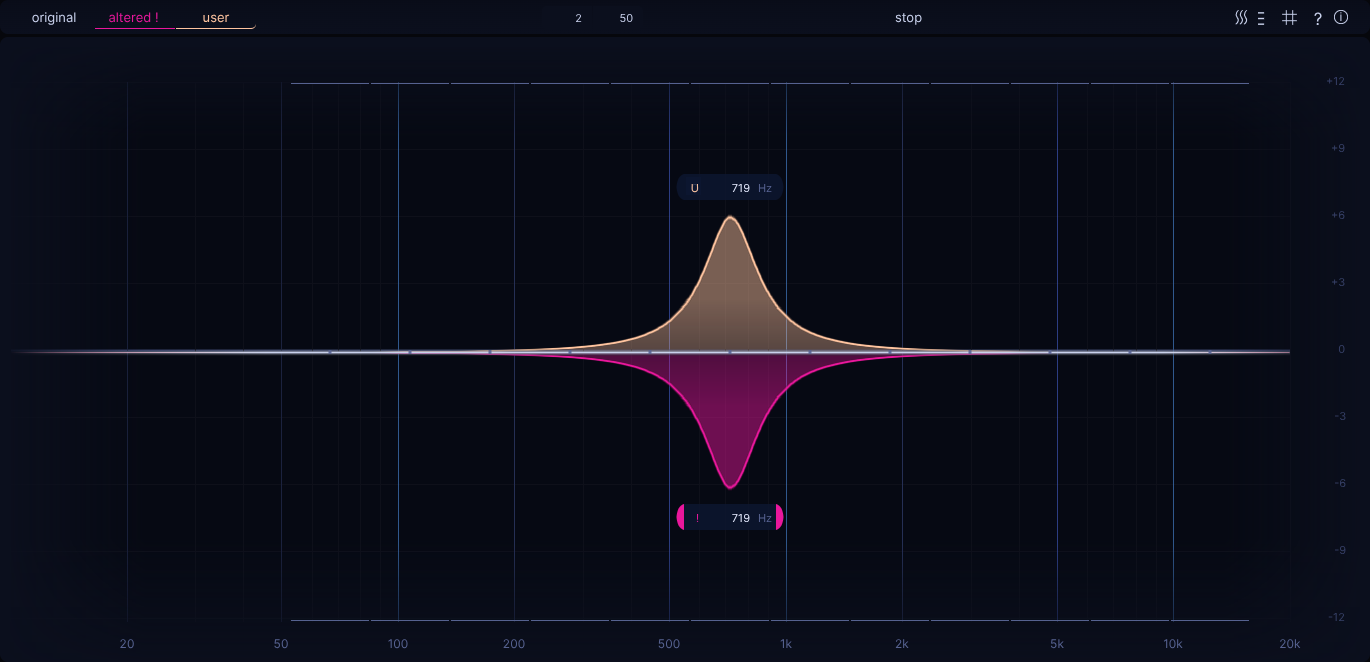
The objective during each turn is to determine the random 'altered' filter position by ear.
A "spot on" answer constitutes the 'user' filter "balancing out" the 'altered' filter. One could also say the 'user' filter needs to be the inverse of the 'altered' filter regarding gain.
A new turn starts off with the 'original' filter being selected, meaning one hears the original audio track, without any alterations.
Similar to using reference tracks during mixing or mastering, at this point it's about internalizing "what balanced
sounds like".
At least as far as the original audio track is concerned.
Once 'original' filter has be deselected, it can't be re-selected for the ongoing turn, up until an answer has been given. This is intentional behaviour, cause otherwise one could too easily figure out the solution by trial-and-error. Furthermore it trains up one's ability to remember what "balanced" sounds like. Until the answer is given, one can only switch between 'altered' and 'altered + user' (still done via same controls; 'altered' is effectively "sticky").
Upon switching to the 'altered' filter, some "random" alteration in the sense of the
current filter settings, at one of the possible snap point positions, is being applied.
On a side note, neither with 'original', nor with 'altered' filter being selected will the visually seen filter, which one can move around via mouse movement, have an audible effect that correlates with the filter position.
Only when 'user' filter (in the sense of 'altered + user') is selected will its respective effect be applied.
When it comes to distinguishing which filter is active, there are various visual indicators available:
- the filter buttons located top left
- the filter color
- the icon towards the left side within the filter info box
Filters can be changed either via:
- the filter buttons (inefficient)
- the mouse wheel (decent, but not the most direct)
- the associated shortcuts:
'a','s','d'(recommended)
Turns can be started and answers be given via LMB click or shortcut 'f'.
To repeat, the objective is now to figure where to place the visible 'user' filter so that once 'user' filter is
enabled, it sounds "balanced" again, like the 'original' filter scenario.
The whole point here is to do is purely by ear, so one can train up their ability to pinpoint what EQ change is
required to get to a more balanced state than the "random alteration".
Once the placed 'user' filter has been given as an answer, one can toggle between all filter states, including
'original' filter.
This allows one to review one's answer and in case of of a "not spot on" answer, to compared what "actually
balanced filterl" ('original') sounds like to the 'altered + user' combination.
The 'recap' feature
Strictly speaking, a given turn has a given audio segment one listens to while coming up with an answer. when it comes to reviewing one's answer after it has been given, just listening to the ongoing audio track is somewhat misleading.
Just imagine the following:
- the turn's audio segment had a lack of bass to it (e.g. filter sweep), which was kind misleading
- as a result your answer was off due concluding "there's a lack of bass, let me boost it"
- upon seeing your answer off and deciding to review and compare it to
'original'filter for a bit, you might be suprised how your answer came to be, simply because whatever audio segment is playing at the time happens to include plenty of bass again (e.g. filter sweep is over)
If you are interested in listening back to the exact same audio segment that you listened to while coming up with the
answer, then the 'recap' feature is the answer.
At all times, EQdrill keeps track of what this actual audio segment is.
By using the recap button (icon shows a time selection with an eye like icon in it) located bottom right in the player area, or by using shortcut 'v', EQdrill will restore the resp. audio segment via a temporary loop selection.

Upon starting the next turn, this temporary loop selection will be discared and playback continues according to the
'recap continue' setting.
Due to it's design, this feature can only be toggled while one observes a turn's answer.
If you would like to have every single turn use recap loop selection by default, then 'auto recap' setting can be
enabled.
Many turns
By playing many turns of good enough answer quality, an additional objective can be achieved, which will be explained in a later chapter called Clearing.