Snap edit
So far the available snap points were simply a result of the 'lower / upper outer limit' and the chosen 'difficulty' setting in the SideBar.
We can think of this collection of available snap points as kind of a "snap pool".
Starting from this snap pool, we can configure which snap points shall be enabled or disabled.
To do so, open the snap edit mode via the respective button towards the right of the heatmap button or via shortcut 'shift + e'.
'snap edit mode'' is a Bound setting.
But opposed to others, it can be configured even for an ongoing heatmap.
The motivation behind this is that it allows for setting up a new snap point selection based on some ongoing or already cleared heatmap.
As a consequence of making an actual change to the snap point selection, EQdrill will prompt for confirmation regarding resetting the heatmap thereafter. See chapter Bound settings why this heatmap reset is happening (hint: because removing or adding snap points potentially changes the perceived difficulty of the ongoing heatmap).
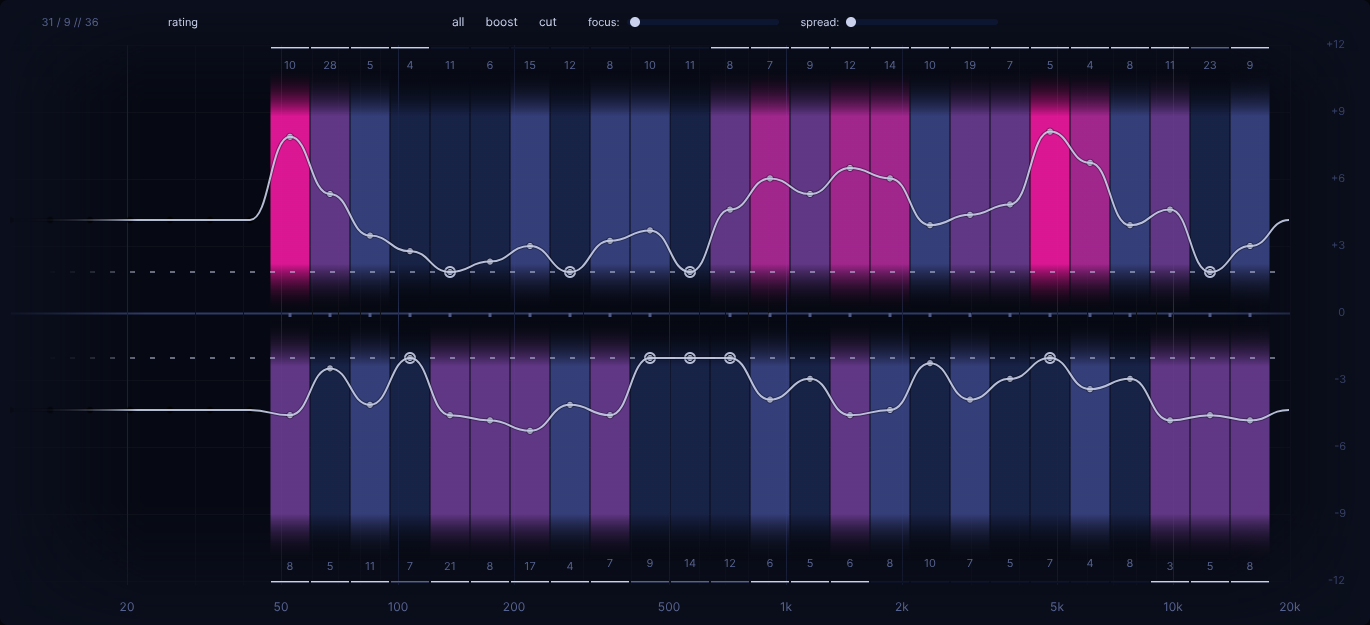
A couple visual changes are to be noted here:
- if the heatmap wasn't already showing, it will be shown now
- those thin horizontal lines at the top / bottom of the game area, the 'snap indicators', will appear brighter
- some additional buttons and sliders are shown towards the top as well
In this case we decided to disable a stretch of snap points towards the upper half in the low mids and the lower half towards the upper mids.
Concept
The general concept here is the following:
By using LMB click or drag, one can enabled snap points, by using RMB click or drag, one can disabled snap points.
Basically like "drawing in / erasing" the snap point enable state as desired.
Alternatively one can use the 'all' button to toggle all snap points at once, or the 'boost' and 'cut' buttons to toggle the respective half.
'focus' slider
The 'focus' slider allows for making a snap point selection based on heatmap information.
By default, when heatmap view is 'rating', the selection will focus increasingly more on worse ratings.
This can be rather useful when one wants to focus only on e.g. the worst ratings from the previous heatmap in the upcoming heatmap.
But when heatmap view is 'eval', the selection will instead focus increasingly more on snap points with higher eval counts.
This on the other hand is rather helpful if one wants to create a snap selection that focuses on snap points with higher eval counts, meaning snap points that have taken the most effort so far / to clear.
In case one has cleared a heatmap, heatmap view 'rating' becomes rather poinless due to every snap point having reached "best rating".
At this point it's about heatmap view 'eval' and using the 'focus' slider in conjunction with it as described (if desired).
What about
contribview?
Yes, focus slider can be used even here, but it's bit special.
Remember: while contrib view is active, moving the user filter around changes the view.
Moving mouse up to focus slider can get in the way with that.
Anyway, here's how to do it:
- decide on which snap point's answers
- hold
Ctrl + Shift(on Linux and Windows; for macOS, searchControlswindow for "move mouse" mapping) - move mouse to
focusslider (due to those modifiers being held, user filter position won't change) - adjust
focusslider just slighly
The result will be a snap point selection based on all given answers for the given snap point. This might be of interest for subjectively, particular tricky snap points, just so we can train them in context of all the wrong guesses we made during the given heatmap.
'spread' slider
The 'spread' slider on the other hand does a kind of "thinning out" of snap points.
Makes more sense for higher difficulties, cause it would be hard to create something like that via manual "drawing in".
Just give it a try and you'll see the effect.
Though we'd like to point out that the "spreading" references the most outer enabled snap points in upper/lower half. Therefore if your goal is, for instance, to select the idential snap points of the lower difficulty, but now on the next higher difficulty, via leaving out every second snap point, then that's totally doable, but might need a bit of experimentation with adding/removing the lowest snap point (i.e. low end) in each half and a bit of trial-and-error if it doesn't happen to align right away.
What's the point of "thinning out" snap points on a higher difficulty, when it ends up with the same amount of snap points as on the lower difficulty?
As mentioned in chapter Difficulty, the 'rating falloff' differs between difficulties.
Therefore, even if it's the same amount of snap points in the end, the rating delta calculation will be stricter, which gives an increased challenge, without one taking on the full amount of all snap points of the higher difficulty.
In a sense, this can serve as one of several "stepping stones" when going up a difficulty level.
In chapter Build up another "stepping stone" for "progressively building up to a higher difficulty" will be introduced.
With all that being said, one can always leverage the above sliders to "start off" and then adapt the 'snap pool' further manually.
Lastly, one overall constraint of snap edit mode is that at least one snap point has to be enabled. Otherwise snap edit mode can't be closed. But of course, having just one snap point enabled provides no actual challenge.
Result
Once you've made the desired snap selection, close the snap edit mode again. Now all those disabled snap points will no longer be available within the 'snap pool', which is the collection of snap points the random 'altered' filter can be chosen from (accounting for opposite gain) and the 'user' filter be placed on. Effectively you won't be asked those snap points.
Visually this is indicated by snap indicators being hidden for disabled snap points on the current difficulty. If both snap points of a given frequency are disabled, even the snap dot on the center line (optionally present for lower difficulties) will also have disappeared.